
An interesting arrangement for some chairs outside a store on 4th Street N.W. in Calgary, spotted a few weekends ago.

08 Friday Nov 2019
Posted in Apple, Calgary, Canada, photography, photowalk, photowalking, random, urban
29 Tuesday Sep 2015
Posted in Apple, iPhone, photography
Tags
Apple’s latest smartphones went on sale Friday.
You might have seen comparisons between the cameras on iPhone 6s and 6s Plus to those installed in their immediate predecessors.
However, there are a lot of folks who upgrade every other year … and if you’re one of those people, this camera comparison of iPhone 6s versus iPhone 5s is for you, based on my initial impressions, for what they’re worth.
The smaller pixels in the new iSight sensor don’t appear to have degraded picture quality.
Upon closer inspection, it appears the default sharpening is more aggressive in iPhone 6s. It’s especially noticeable in photos with lots of grass or foliage, or photos that contain type (smaller type in particular).
It appears tone mapping is improved, as advertised.
I can’t seem to determine how the camera’s auto white balance works, however. Some scenes show the 6s coming up warmer while the 5s comes up with a warmer photo in other scenes.
EXIF data show the iPhone 6s is capable is capturing images at ISO 25 whereas the 5s topped out at ISO 32.
Colour reproduction appears improved for indoor and night scenes. At night, the new noise reduction and increased sharpening appear to work in concert to provide a cleaner image.
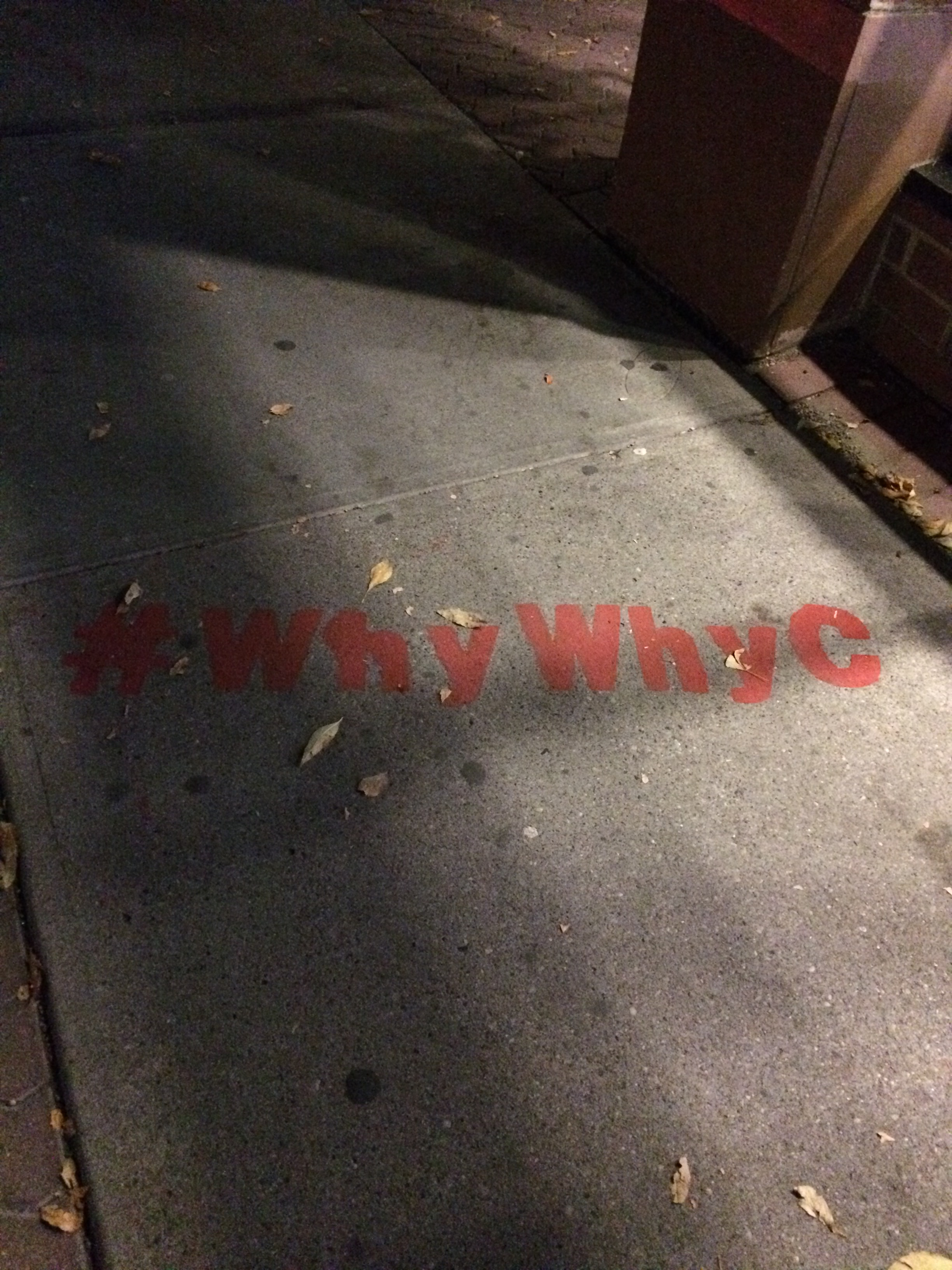
To see some of my observations for yourself, please check out the sample images below. The iPhone 6s photos are shown first (left or top, depending on how you’re viewing the page). Click on the photos to see the larger, original image.
Daytime shots are from Heritage Park in Calgary; nighttime shots are from the Kensington neighbourhood and along the Bow River. All are full frame and unedited, straight out of the camera.
And if you’ve also come into possession of an iPhone 6s recently, I’d love to hear from you in the comments below.
Happy iPhoneography to you!

















22 Saturday Feb 2014
Posted in Apple, Internet, iPad, iPhone, technology
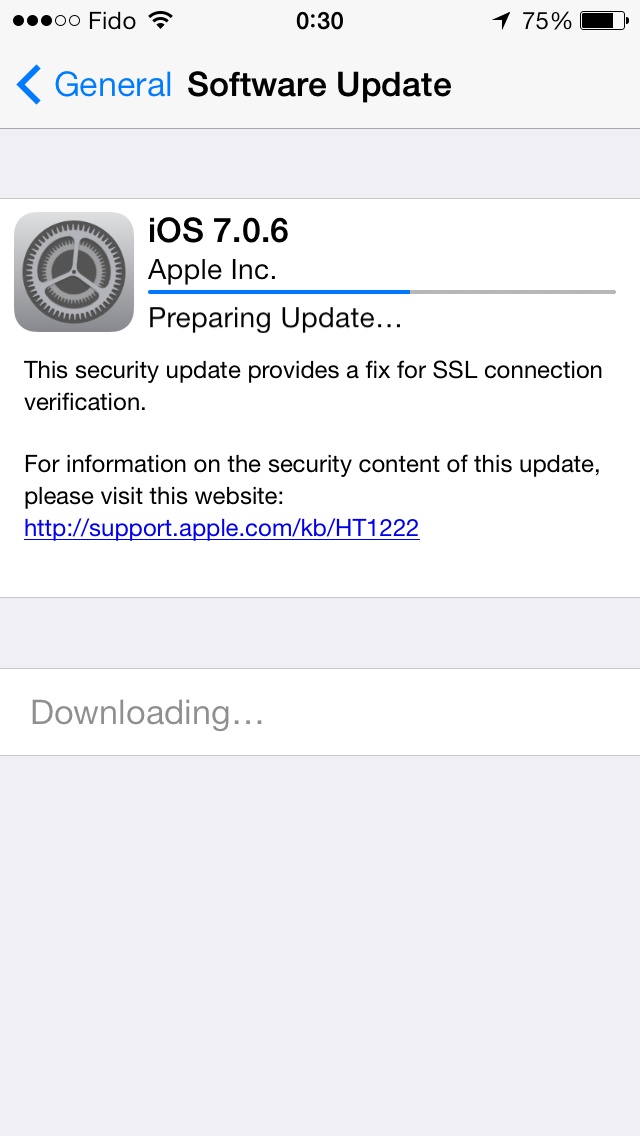
Screen capture showing download of iOS 7.0.6, which patches security flaw.
Just read a news article on a serious security flaw in iOS 7 and immediately downloaded a software update to my device to patch this problem.
According to the news story linked above: “If attackers have access to a mobile user’s network, such as by sharing the same unsecured wireless service offered by a restaurant, they could see or alter exchanges between the user and protected sites such as Gmail and Facebook. Governments with access to telecom carrier data could do the same.”
I had to invoke the update process manually by going to Settings > General > Software Update where I was invited to download the patch, iOS version 7.0.6.
Those among you with iDevices might want to think about doing the same.
03 Thursday Oct 2013
Posted in Apple, iPhone, photography, technology
Tags
apple, camera, iOS, iPhone, iPhone 4S, iPhone 5S, iPhoneography, photography, tech, technology
Well, you’ve probably seen a few of these online already … but I thought I’d throw in my two cents anyway with this non-scientific comparison between the cameras on Apple’s iPhone 5S and 4S.
In each row, the 5S photo is on the left and the 4S photo is on the right.
To see a larger version of the picture, click on the image for a link.
None of these images was retouched or cropped. They are as the cameras captured them.
Enjoy!
DAYLIGHT


DAYLIGHT


DAYLIGHT


NIGHTTIME


NIGHTTIME


Please share your thoughts and impressions, if you’ve got any.
29 Sunday Sep 2013
Posted in Apple, iPad, iPhone, technology

So in iOS 7, it appears you can only repeat an album if you choose to listen to an album whilst browsing from the Album category. If you choose an album whilst browsing the Artist category, you can only choose to repeat the artist.
That’s a pretty weird limitation, especially for people like me, whose mind is set to sorting music by artist name rather than by album name.
Here’s hoping this is a temporary change.
27 Friday Sep 2013

There does not appear to be a “Repeat album” option in the iOS 7 music player. A bit annoying.
Additionally, I’ve noticed some volume issues in playlists, where songs will suddenly get louder or quieter within the first few seconds. Perhaps something amiss with “Sound Check”?
In any case, there is apparently an update to iOS 7.0.2 that mainly corrects a security problem … perhaps these will be addressed, too?
UPDATE: Answered my own question, sort of. Please see this newer post.
25 Wednesday Sep 2013
Posted in Apple, iPad, iPhone, technology

Since installing iOS 7 onto my iPhone 4S and third-generation iPad last week, I’ve noticed something strange about the default Mail application.
Mail on my devices is set to manual fetch, not push.
And yet, it seems to be automatically fetching e-mail when I close the mail application in the multitasking screen and when my device is booting after a restart.
Have you observed this (or any other) unexpected behaviour from Mail in iOS 7?
19 Thursday Sep 2013
Posted in Apple, iPad, iPhone, technology
Tags
apple, iOS, iOS 7, iPad, iPhone, mobile, smartphone, tablet, tech, technology
Apple unleashed its newest operating system on the world Wednesday. You’ll find my preliminary thoughts on iOS 7 interspersed with some screenshots from my phone.

As of this writing, tech websites are reporting iOS 7 has already been installed on some 15% of Apple mobile devices so far.
I loaded iOS 7 into my iPhone 4S this morning and my first impressions are generally positive. Quickly, on the things that matter:
• The phone still works as it should. I remembered all my ringtone and message sound settings. I even took a phone call today (!) and everything went fine.
• The battery life was just as good as it was in iOS 6. With the Wi-Fi on at work and a 2G (EDGE) connection to my service provider, no Bluetooth, manual fetching of e-mails, minimal push notifications, some location services off and moderate use today, the phone’s charge went from 99% to 70% between 1 p.m. and midnight. Not too shabby.
• No apps misfired, to my knowledge.
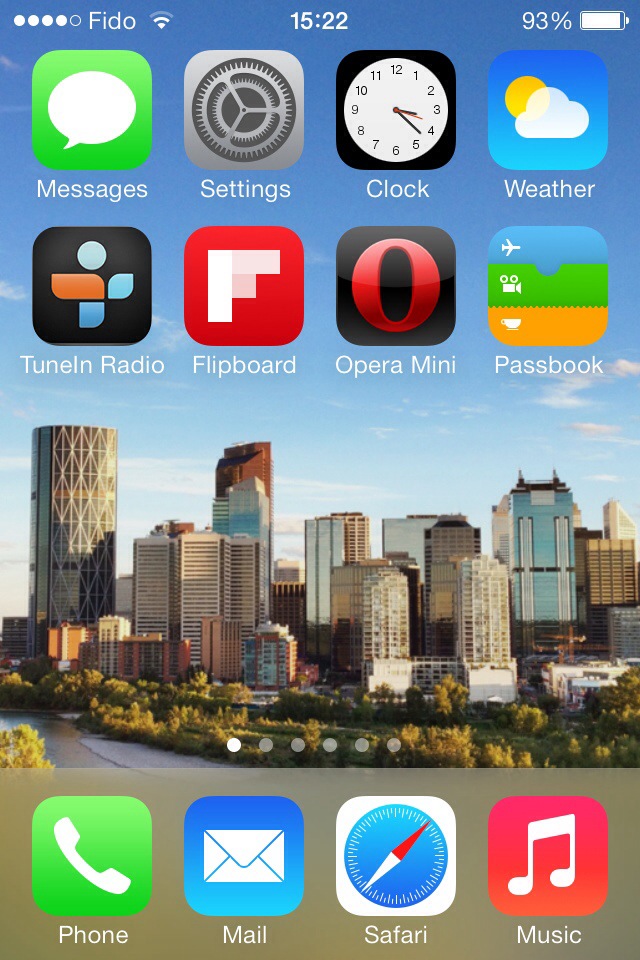
The installation process was somewhat lengthy. From the time I told my phone to download until the iOS 7 setup menus became active, it took almost an hour.
Unlike some other iDevice users, however, I had no trouble downloading the operating system.
(As I write this, my third-generation iPad is being updated. It doesn’t appear to be taking quite as long.)
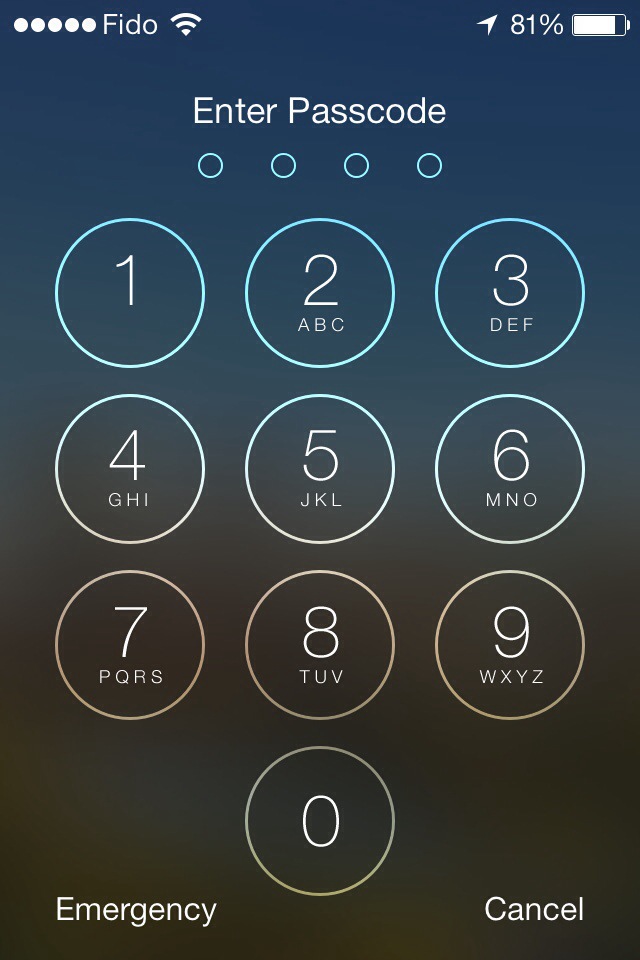
The interface is gorgeous. I am particularly fond of the extra-thin font is use for such things as the clock and keypad on the lock screen.
I’m also pleased at the ability to adjust the default font size, for apps that support this feature.
The parallax between the icons and the wallpaper is a little off-putting. Frankly, it hasn’t helped me (yet) to enhance the “layering” of the operating system, as Apple was pitching when iOS 7 was first introduced to the public.
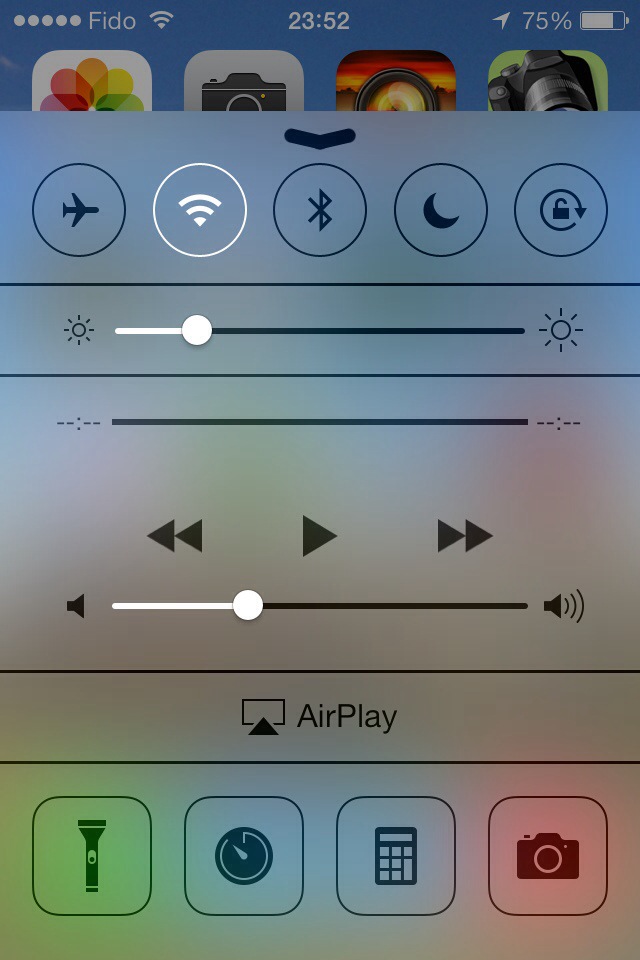
The control centre is an idea whose time has come. I keep forgetting it’s there and continue to dig into my Settings menus to gain access to controls for Wi-Fi and Bluetooth.
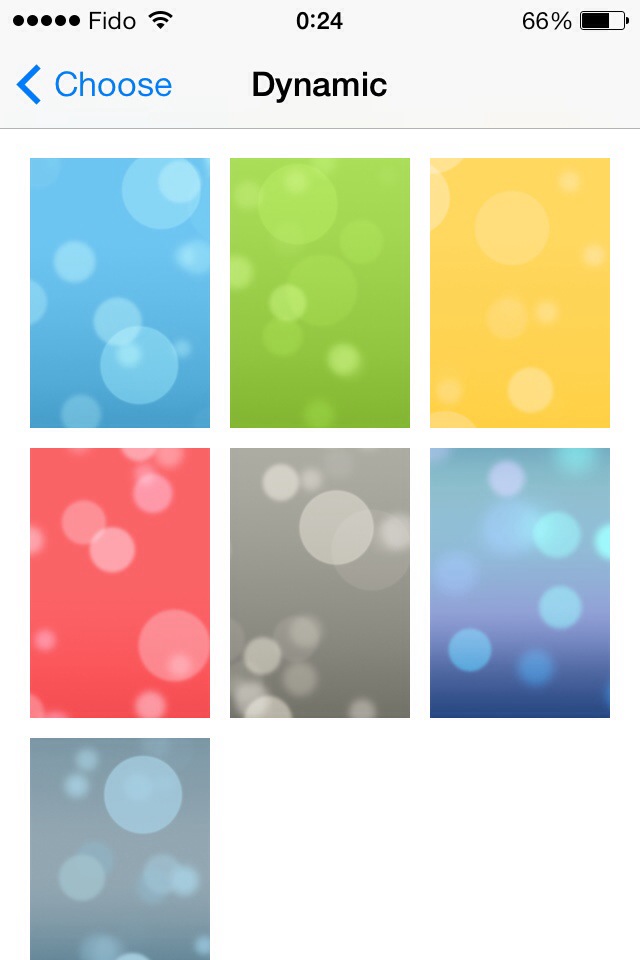
The new operating system offers a selection of cool wallpapers, in case you don’t have something special set aside. One set has dynamic wallpaper, with background bubbles that move around as your device moves.
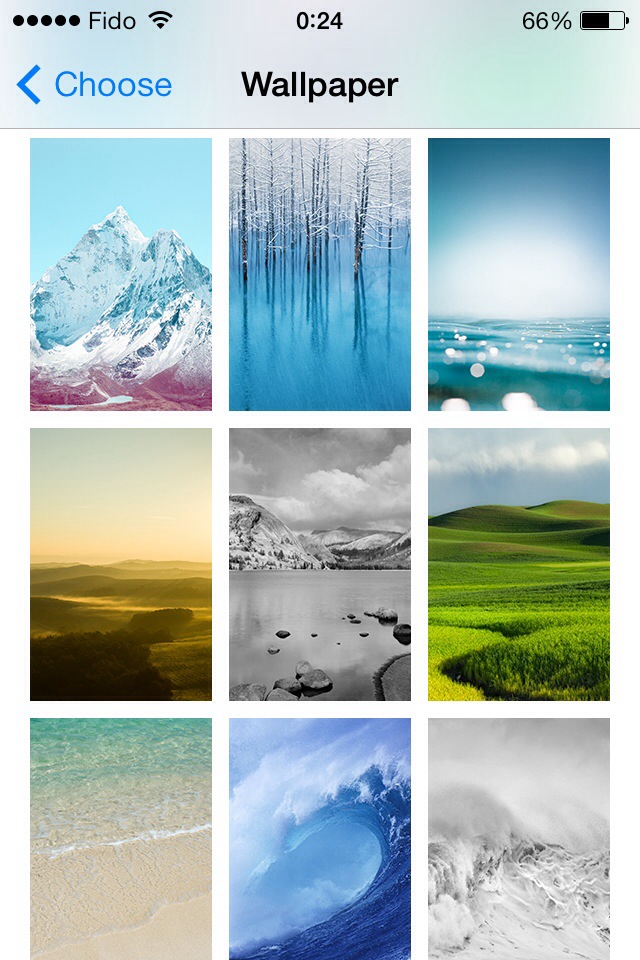
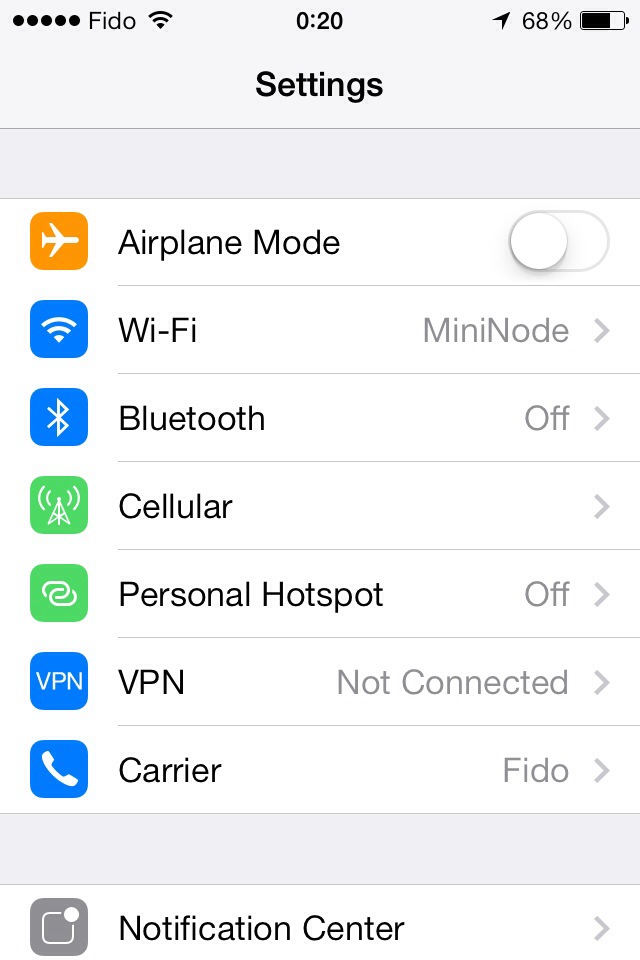
Apple promised the migration to a whole new interface wouldn’t be painful, that it would be “instantly recognizable”, to quote Jony Ive from a video from Apple’s website.
That statement mostly holds true. Take the Messages interface, for example. Blue speech bubbles for iMessage; green for regular SMS. And if you look at the screenshot of the Settings menu above, you’ll see the hierarchy is pretty much identical to how it was in iOS 6.
However, there are few changes that break with the familiarity of the old versions of iOS.
• Swiping to delete (in Mail, for example) only works if you swipe right-to-left.
• You still double-click the home button to switch apps. To kill an app, you hold your finger on a screenshot and flick it upward … and it magically disappears.
• There is a new method to invoke Spotlight. Flick down from anywhere in the middle of the screen.
• Facebook and Twitter posting are gone from the Notification Centre.
• Weather remains as text describing current conditions in the Notification Centre — but only if “Weather” in location services is enabled.
• The Newsstand folder no longer behaves as an app. (I never understood why it did and I always found that annoying. I’m glad this was fixed.)
• You can set your apps to automatically update as fixes become available. This is not mandatory, however.
• The overview of your photos is grouped in specific time periods, in what Apple calls “Moments” and “Collections”. The behaviour of photo albums remains unchanged.
• The screen now fades in and out instead of turning immediately on or off.
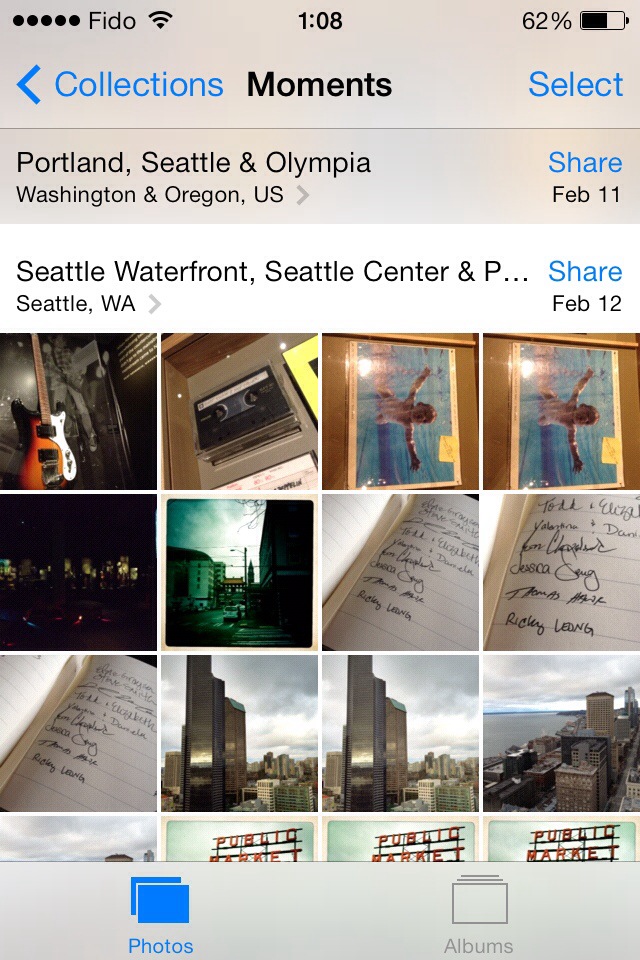
Those are some of the things I noticed in my first half-day of using iOS 7. I’ll share with you any new discoveries and/or oddities that might come along as I become more familiarized with it.
15 Wednesday May 2013
Posted in Apple, architecture, British Columbia, Canada, fun, iPhone, photography, photowalking, random, technology, trains, transit, Travel, urban, Vancouver
Tags
b.c., british columbia, canada, Canadian Pacific, history, iPhone, iPhoneography, panorama, photography, photowalk, rail, railroad, railway, random, roundhouse, train, trains, Travel, urban, vancouver, Yaletown

This is the former Canadian Pacific roundhouse in Vancouver’s Yaletown district, captured with a sweep of my iPhone’s camera in “panorama” mode.
It was really interesting to try this, because the roundhouse is built in the shape of an arc … so if you’re standing at the centrepoint of the arc and you swivel to capture the panorama, the main subject doesn’t look very distorted at all, while everything else does.
17 Wednesday Apr 2013
Posted in Apple, iPad, technology
Tags
Over the last year, I’ve taken several trips on which my trusty laptop computer stayed at home while an iPad accompanied me on my journey instead.
Although I successfully wrote innumerable e-mails, dozens of blog posting and several newspaper columns on my travels, I sometimes missed having a physical keyboard.
In comes the Logitech Ultrathin Keyboard Cover.
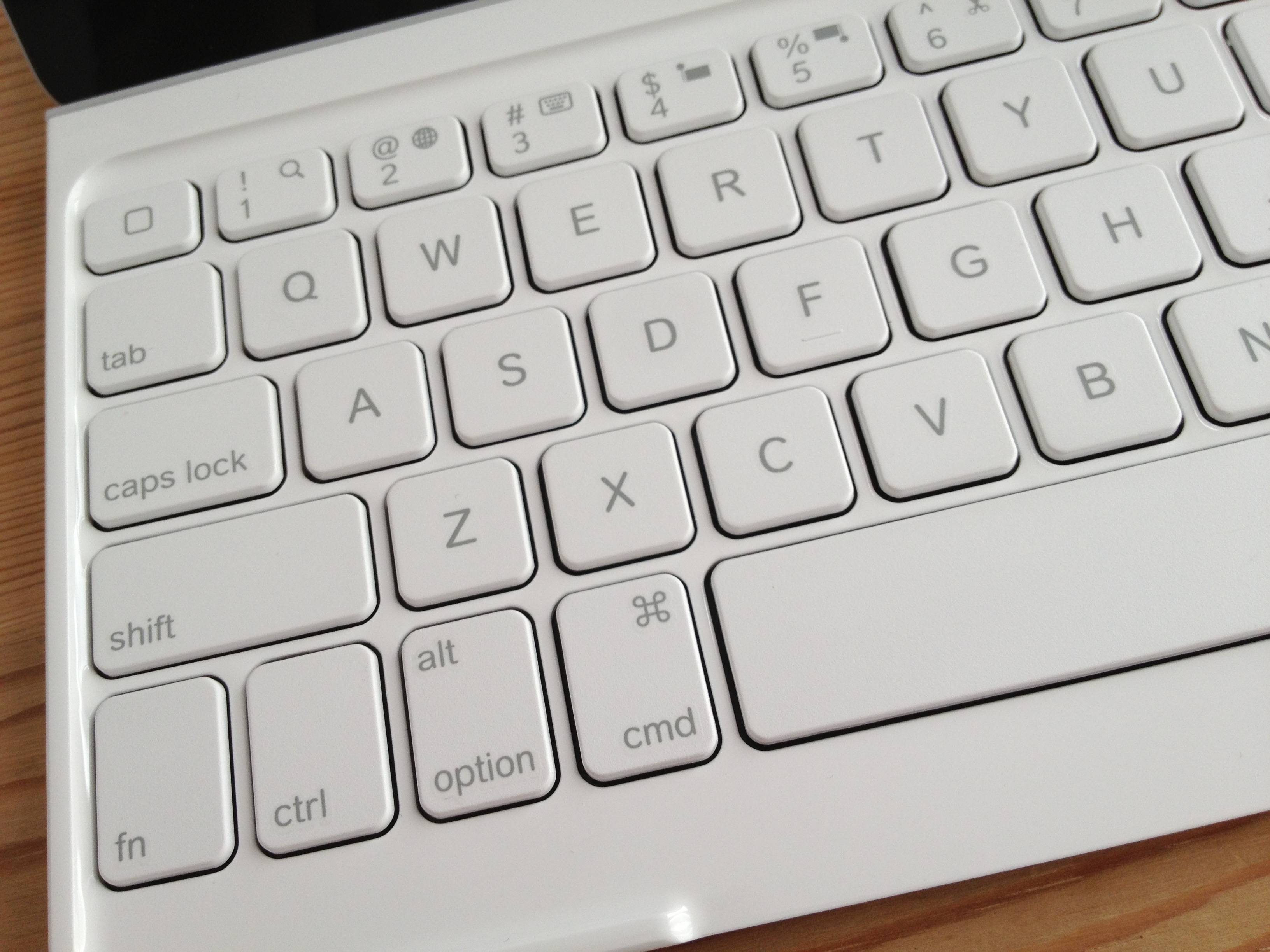
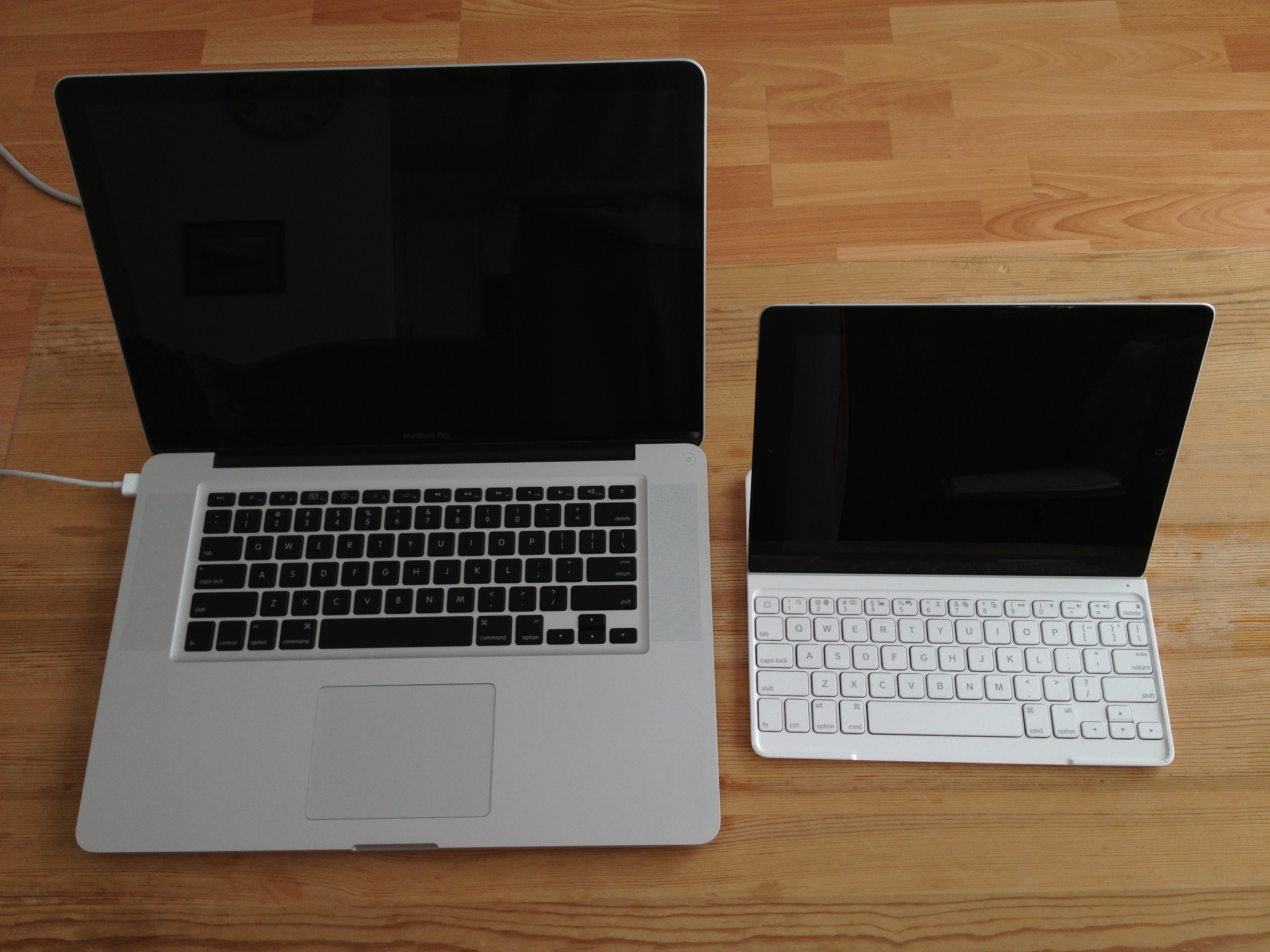
It’s not a full-sized keyboard, so it might take a minute or two to get used to the spacing between keys.
Where an ‘esc’ key would be on a normal keyboard, there is an extra home button. It behaves like its physical equivalent.
A ‘fn’ key gives you access to several useful functions: Search, language switching, selecting/cutting/copying/pasting, play/pause, mute, volume and iPad lock/unlock.
And happily, if you’re also a Mac user, all the usual keyboard shortcuts work as you’d expect — shift/option/cmd combos to move around and select text, cmd+C to copy, cmd+V to paste, option+shift+hyphen for an em-dash, option+8 for a bullet … everything exactly as it should work.
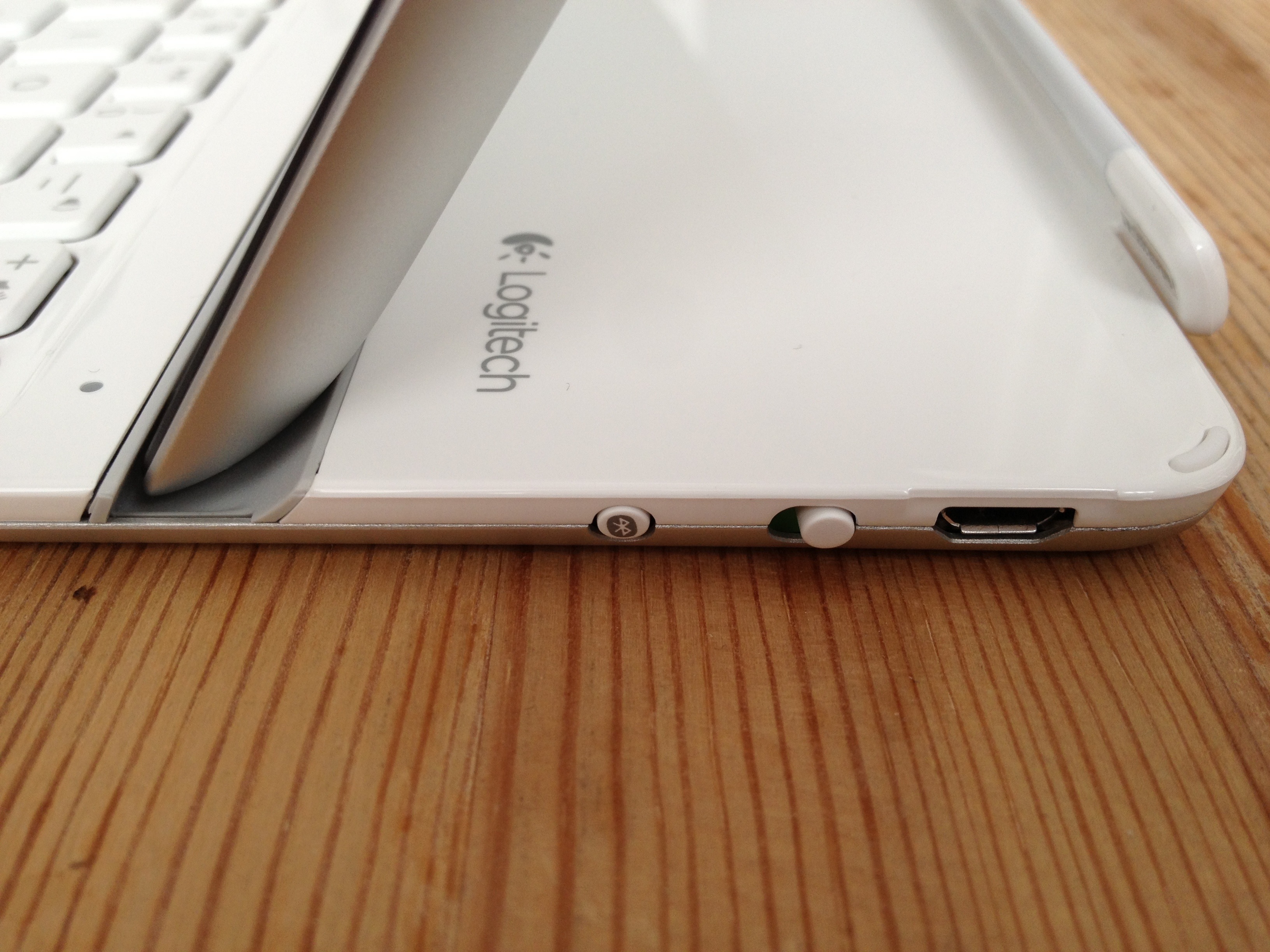
Physically speaking, the keyboard is light. The iPad feels secure when inserted into the provided groove. The keyboard also stays attached if you lift the combo off your lap/desk/work surface.
The keys themselves feel good, resembling what you’d expect from Apple’s own low-profile soft-touch keyboards.
The initial Bluetooth pairing between the keyboard and the iPad was a dream.
Charging to full took a couple of hours; the manual claims the keyboard will hold its charge for as long as six months for light daily duty.
As much as I have many nice things to say about this device, I’m not yet convinced about the keyboard’s function as a cover, mainly because the side magnet is not as sturdy as the one on Apple’s own Smart Cover.
The thing works great when it’s closed. There are little rubber feet in the cover to separate it from the screen. It doesn’t attach magnetically as a Smart Cover would but if you slide the iPad and cover into a sleeve or a laptop bag, there should be no trouble.
Trouble does come once it’s open. The cover is heavy enough that it will detach from the iPad if you don’t provide any support. And forget about flipping the cover over and under, as you would with a standard Smart Cover. It will come right off.
My biggest gripe: The provided USB/power cable for charging is ridiculously short — only 38 cm/15 inches long. It might make things tricky when replenishing the keyboard’s rechargeable battery.
In short, the Logitech Ultrathin Keyboard Cover turns iPad into something resembling a touchscreen laptop computer.
The concept of touching the screen *and* typing to interact with my device was odd at first, but I’m getting accustomed to it.
(For what it’s worth, this review was written using the keyboard, in separate writing sessions spread out over several weeks. Things went quite well.)
There will be times when a travelling with a full-fledged mobile computer will be called for. But for those occasions where the iPad is sufficient, the Logitech keyboard cover (or a similar device) should make typing that much easier and enjoyable.
 Ricky Leong