• Home
  • About this blog

Ricky Leong

~ Random Musings

Ricky Leong

Tag Archives: mobile

Gems in iOS 9 on iPad

24 Saturday Oct 2015

Posted by Ricky Leong in random, technology

≈ Leave a comment

Tags

apple, iOS, iPad, iPhone, mobile, tech, technology

Like many users of Apple’s mobile products, I’ve been getting a hands-on experience with iOS 9 for a few weeks now.

I can happily report I am generally pleased with the upgrade. I have (so far, anyway) not seen any of the negative side-effects that have been reported elsewhere on the Internet.

Here, I’d like to share two small things I’ve noticed about iOS 9 on iPad that I found neat.

1) App switcher with external keyboard

I most often use my iPad as it is — that is, naked — but from time to time it turns into a backup computer with a Bluetooth-enable keyboard.

Imagine my surprise when I absent-mindedly hit Command+Tab and saw this:

iOS 9 shows you something very reminiscent of OS X, Apple’s desktop operating system.

It’s a nice little touch!

2) Battery widget in notification screen

I’ve never seen a battery widget in the notification screen until today.

The widget exists in portrait and landscape modes but it disappears once I power off my Bluetooth keyboard. There is also no battery widget currently visible on my iPhone’s notification screen. I can only presume this only becomes visible when iPad is connected with one or more devices capable of displaying remaining battery capacity. Another small, if cosmetic, addition.

I’ll pass along more iOS 9 hidden gems if I encounter any more!

Share this:

  • Click to email a link to a friend (Opens in new window) Email
  • Click to share on Facebook (Opens in new window) Facebook
  • Click to share on X (Opens in new window) X
  • More
  • Click to share on Reddit (Opens in new window) Reddit
  • Click to share on Tumblr (Opens in new window) Tumblr
  • Click to share on LinkedIn (Opens in new window) LinkedIn
  • Click to share on Pinterest (Opens in new window) Pinterest
  • Click to print (Opens in new window) Print
Like Loading...

Strange Mail behaviour in iOS 7

25 Wednesday Sep 2013

Posted by Ricky Leong in Apple, iPad, iPhone, technology

≈ Leave a comment

Tags

apple, iOS, iOS 7, iPad, iPhone, mobile, tech, technology

20130925-020817.jpg

Since installing iOS 7 onto my iPhone 4S and third-generation iPad last week, I’ve noticed something strange about the default Mail application.
Mail on my devices is set to manual fetch, not push.
And yet, it seems to be automatically fetching e-mail when I close the mail application in the multitasking screen and when my device is booting after a restart.
Have you observed this (or any other) unexpected behaviour from Mail in iOS 7?

0.000000 0.000000

Share this:

  • Click to email a link to a friend (Opens in new window) Email
  • Click to share on Facebook (Opens in new window) Facebook
  • Click to share on X (Opens in new window) X
  • More
  • Click to share on Reddit (Opens in new window) Reddit
  • Click to share on Tumblr (Opens in new window) Tumblr
  • Click to share on LinkedIn (Opens in new window) LinkedIn
  • Click to share on Pinterest (Opens in new window) Pinterest
  • Click to print (Opens in new window) Print
Like Loading...

My first 12 hours with iOS 7

19 Thursday Sep 2013

Posted by Ricky Leong in Apple, iPad, iPhone, technology

≈ 3 Comments

Tags

apple, iOS, iOS 7, iPad, iPhone, mobile, smartphone, tablet, tech, technology

Apple unleashed its newest operating system on the world Wednesday. You’ll find my preliminary thoughts on iOS 7 interspersed with some screenshots from my phone.

20130919-001924.jpg

As of this writing, tech websites are reporting iOS 7 has already been installed on some 15% of Apple mobile devices so far.
I loaded iOS 7 into my iPhone 4S this morning and my first impressions are generally positive. Quickly, on the things that matter:
• The phone still works as it should. I remembered all my ringtone and message sound settings. I even took a phone call today (!) and everything went fine.
• The battery life was just as good as it was in iOS 6. With the Wi-Fi on at work and a 2G (EDGE) connection to my service provider, no Bluetooth, manual fetching of e-mails, minimal push notifications, some location services off and moderate use today, the phone’s charge went from 99% to 70% between 1 p.m. and midnight. Not too shabby.
• No apps misfired, to my knowledge.

20130919-001956.jpg

The installation process was somewhat lengthy. From the time I told my phone to download until the iOS 7 setup menus became active, it took almost an hour.
Unlike some other iDevice users, however, I had no trouble downloading the operating system.
(As I write this, my third-generation iPad is being updated. It doesn’t appear to be taking quite as long.)

20130919-002011.jpg

The interface is gorgeous. I am particularly fond of the extra-thin font is use for such things as the clock and keypad on the lock screen.
I’m also pleased at the ability to adjust the default font size, for apps that support this feature.
The parallax between the icons and the wallpaper is a little off-putting. Frankly, it hasn’t helped me (yet) to enhance the “layering” of the operating system, as Apple was pitching when iOS 7 was first introduced to the public.

20130919-002026.jpg

The control centre is an idea whose time has come. I keep forgetting it’s there and continue to dig into my Settings menus to gain access to controls for Wi-Fi and Bluetooth.
The new operating system offers a selection of cool wallpapers, in case you don’t have something special set aside. One set has dynamic wallpaper, with background bubbles that move around as your device moves.

20130919-002552.jpg

20130919-002604.jpg

20130919-002107.jpg

Apple promised the migration to a whole new interface wouldn’t be painful, that it would be “instantly recognizable”, to quote Jony Ive from a video from Apple’s website.
That statement mostly holds true. Take the Messages interface, for example. Blue speech bubbles for iMessage; green for regular SMS. And if you look at the screenshot of the Settings menu above, you’ll see the hierarchy is pretty much identical to how it was in iOS 6.
However, there are few changes that break with the familiarity of the old versions of iOS.
• Swiping to delete (in Mail, for example) only works if you swipe right-to-left.
• You still double-click the home button to switch apps. To kill an app, you hold your finger on a screenshot and flick it upward … and it magically disappears.
• There is a new method to invoke Spotlight. Flick down from anywhere in the middle of the screen.
• Facebook and Twitter posting are gone from the Notification Centre.
• Weather remains as text describing current conditions in the Notification Centre — but only if “Weather” in location services is enabled.
• The Newsstand folder no longer behaves as an app. (I never understood why it did and I always found that annoying. I’m glad this was fixed.)
• You can set your apps to automatically update as fixes become available. This is not mandatory, however.
• The overview of your photos is grouped in specific time periods, in what Apple calls “Moments” and “Collections”. The behaviour of photo albums remains unchanged.
• The screen now fades in and out instead of turning immediately on or off.

20130919-010848.jpg

Those are some of the things I noticed in my first half-day of using iOS 7. I’ll share with you any new discoveries and/or oddities that might come along as I become more familiarized with it.

0.000000 0.000000

Share this:

  • Click to email a link to a friend (Opens in new window) Email
  • Click to share on Facebook (Opens in new window) Facebook
  • Click to share on X (Opens in new window) X
  • More
  • Click to share on Reddit (Opens in new window) Reddit
  • Click to share on Tumblr (Opens in new window) Tumblr
  • Click to share on LinkedIn (Opens in new window) LinkedIn
  • Click to share on Pinterest (Opens in new window) Pinterest
  • Click to print (Opens in new window) Print
Like Loading...

Mobile life on the EDGE

22 Sunday Jul 2012

Posted by Ricky Leong in Apple, iPhone, technology

≈ Leave a comment

Tags

2G, 3G, apple, cell phone, EDGE, iOS, iPhone, mobile, smartphone, tech

So here’s an update on my post last week about trying to extend my iPhone 4S battery life by switching mostly to 2G (EDGE) instead of using 3G.
On heavy usage, the difference is somewhat noticeable — nothing that blows my mind.
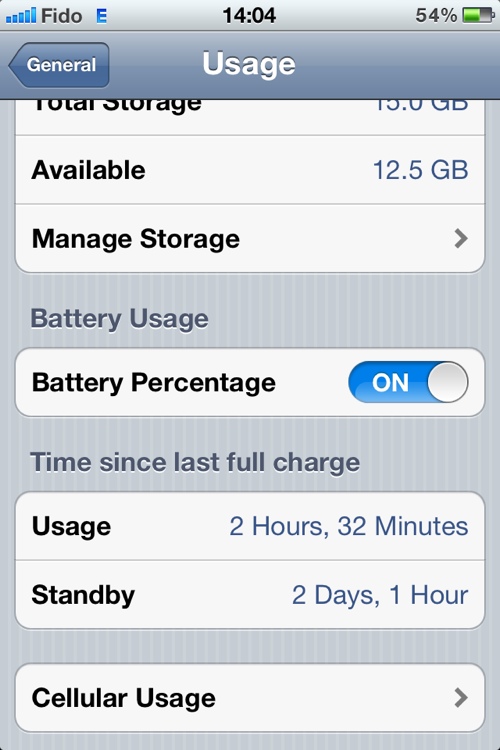
On light usage though, it’s a lot more interesting. As of 2 p.m. today, I’ve had my phone off the mains for a little over two full days and the battery shows 54% capacity remaining.

20120722-141540.jpg
That’s with very light photography,a few phone calls, a little bit of texting, some Internet radio streaming on my drive to work*, light web browsing using Opera Mobile as my browser.
My screen brightness is set to auto with the slider sitting above the letters gh of the word Brightness in the menu.
No video, a bit of Wi-Fi.
Not too shabby.
(*) On mobile Internet radio streaming, that’s where it shows the most noticeable change in battery usage. On my 15-minute commute to work, it typically drains 5% or 6% using 3G. On 2G, it only drains about 3%. That’s something resembling half the previous usage. Nice.

Share this:

  • Click to email a link to a friend (Opens in new window) Email
  • Click to share on Facebook (Opens in new window) Facebook
  • Click to share on X (Opens in new window) X
  • More
  • Click to share on Reddit (Opens in new window) Reddit
  • Click to share on Tumblr (Opens in new window) Tumblr
  • Click to share on LinkedIn (Opens in new window) LinkedIn
  • Click to share on Pinterest (Opens in new window) Pinterest
  • Click to print (Opens in new window) Print
Like Loading...

Hailing the return of slow Internet

15 Sunday Jul 2012

Posted by Ricky Leong in Apple, Internet, iPhone, technology

≈ 1 Comment

Tags

3G, apple, cell phone, EDGE, Internet, iOS, iPhone, iPhone 4S, mobile, mobile Internet, smartphone, technology

If you recall several months ago, when the iPhone 4S was new to my tech family, I lamented the loss of the ability to manually switch off 3G Internet and use EDGE (2G) instead.
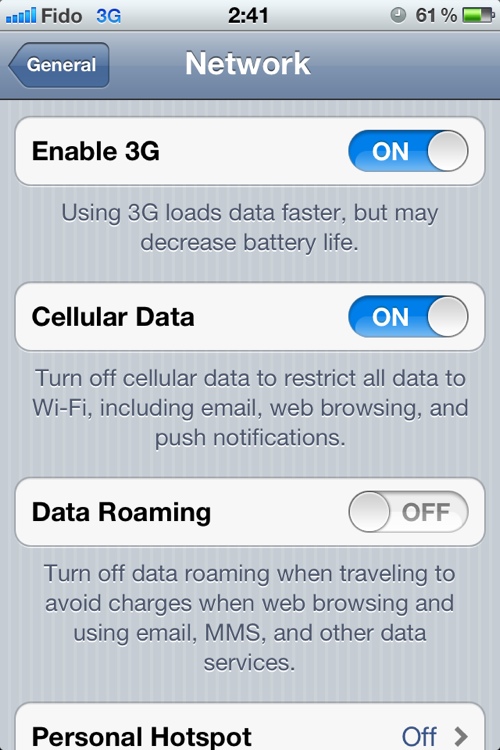
Well in a case of severe catch-up, I’ve finally realized Apple corrected this omission in one of its firmware updates. Behold:

20120715-004129.jpg

Hooray!
I only discovered this within the last day, so I’ll report back later on whether this change will extend the battery life of my device, as is typically the case when mobiles are connected to EDGE versus 3G.
Another benefit of manually forcing your phone to use the slow lane is that in very congested environments, like Manhattan for example, there is heavy congestion on the popular 3G networks and on local WiFi, to the point where a slow but reliable EDGE connection is more useful and enjoyable than a fast but flaky mobile Internet connection.
(As proof, I can attest I was able to send texts and have crisp, clear phone conversations using Skype over T-Mobile’s 2G network in lower Manhattan last August, whereas AT&T’s 3G network was almost useless at times due to congestion.)
By the way, this post was written on my smartphone and uploaded using EDGE … Seems just dandy, thank you very much.

Share this:

  • Click to email a link to a friend (Opens in new window) Email
  • Click to share on Facebook (Opens in new window) Facebook
  • Click to share on X (Opens in new window) X
  • More
  • Click to share on Reddit (Opens in new window) Reddit
  • Click to share on Tumblr (Opens in new window) Tumblr
  • Click to share on LinkedIn (Opens in new window) LinkedIn
  • Click to share on Pinterest (Opens in new window) Pinterest
  • Click to print (Opens in new window) Print
Like Loading...

Quick LTE test

23 Friday Mar 2012

Posted by Ricky Leong in Apple, Internet, iPad, technology

≈ Leave a comment

Tags

apple, iPad, LTE, mobile, speed test, tablet, technology

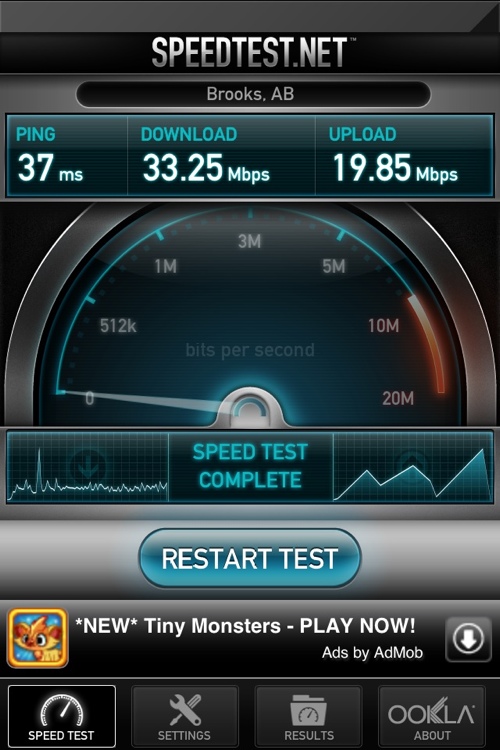
20120323-003128.jpg

Took Apple’s new iPad out for a spin Thursday, to a location where Bell’s LTE mobile coverage was more reliable than at my home.
As you can from the above screen shot, it’s doing very well, thank you very much. And that’s only with signal level fluctuating between two and three bars.
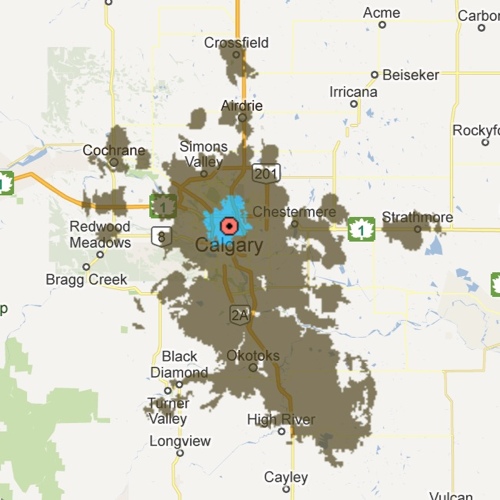
Signal maps below are courtesy of Bell’s website. Blue is current LTE coverage; brown is coverage coming soon.

Central Calgary:
20120323-004347.jpg

Calgary metro area:
20120323-004442.jpg

Share this:

  • Click to email a link to a friend (Opens in new window) Email
  • Click to share on Facebook (Opens in new window) Facebook
  • Click to share on X (Opens in new window) X
  • More
  • Click to share on Reddit (Opens in new window) Reddit
  • Click to share on Tumblr (Opens in new window) Tumblr
  • Click to share on LinkedIn (Opens in new window) LinkedIn
  • Click to share on Pinterest (Opens in new window) Pinterest
  • Click to print (Opens in new window) Print
Like Loading...

iOS 5 — The first 24 hours

13 Thursday Oct 2011

Posted by Ricky Leong in Apple, iPhone, technology

≈ Leave a comment

Tags

apple, cellular, iOS 5, iPhone, mobile, operating system, smartphone

I’ve had iOS 5 installed on my iPhone 4 since it became available shortly before lunch on Oct. 12. Here are some quick and dirty impressions after about a day of use.

Installation: Pretty painless. The download took only a few minutes over broadband Internet. The process of backing up and restoring my iPhone took a fair amount of time — more than 30 minutes.

iCloud: Upon turning on for the first time after the OS update, the phone asked me if I wanted to sign up for iCloud. I accepted. The process took only a few minutes, no doubt shortened because I already had an iTunes/Apple ID account.
I was able to use the set which parts of my iPhone’s content I wanted to back up in the cloud. It doesn’t take much to start gobbling up the seemingly massive 5 GB of backup space. It makes sense, though: My camera roll items are almost 2 GB to just to themselves.
I still haven’t fully explored the capabilities of iCloud. Once I’ve done so, I’ll report back to you.

Notifications in general: I love the new notifications screen. With a swipe of the finger from the top of the screen, I can call up the weather and stocks info without switching apps.
If I’ve skipped calls, text messages, reminders and other such messages, they all queue up there for viewing.
You can set which programs get to live in the notifications screen and how they alert you.
The notifications screen is also available in your lock screen but only if there are new messages/alerts to show you. You’ll see a ridged tab-like icon near the clock, which you can drag down to reveal the notifications.

Messaging/phone call notifications: When I got a text message whilst setting up my phone, the message innocuously dropped down from the top of the screen in a small banner and discretely retreated a few seconds later. Clicking on the message as it appears or selecting it later from the notifications screen will invoke the messaging app for me to respond.
If you prefer the old-school, intrusive text message notification, you can choose “Alert” under Settings > Notifications > Messages > Alert Style.
Phone calls, calendar items and timed reminders have the intrusive “Alert” notifications as a default.

The app formerly known as iPod: Apple has split the music and video portions of the former iPod app and called them — you guessed it — Music and Video respectively.

Newsstand: As the name of this app suggests, this is a Books-style app for newspapers and periodicals. Currently, the Canadian app store has a very limited number of titles for sale. The only icon my Newsstand contains is one for The New York Times, a virtual copy of the standalone NYT app I already own.

Camera from the lock screen: It took me a few hours to figure out that you have to double-click the home button to access the native Camera app from the lock screen. (It’s the same process you’d use to access Music controls when your phone is locked.)
You won’t have access to the full contents of your camera roll until you unlock the phone.

Auto-lock while using AirPlay: Some video-streaming apps (including Livestation and the National Film Board, for example) used to prevent the phone from locking itself while playing. However, this isn’t happening anymore when streaming to Apple TV using AirPlay. If you have auto-lock selected, the app stops and your phone locks after the set time interval elapses. Seems like a bug.
In contrast, the phone does not lock if the video is streaming through iPhone itself.

Other considerations: To allow for iCloud, some iOS 5 features and some feature exclusive to the upcoming iPhone 4S, the following may require a software update.
• The OS on your Mac
• iTunes
• iPhoto, Aperture, iMovie

So those are my initial observations and impressions of iOS 5. Check back in a few days to give me a chance to put the operating system to the test under extended, everyday use.

Share this:

  • Click to email a link to a friend (Opens in new window) Email
  • Click to share on Facebook (Opens in new window) Facebook
  • Click to share on X (Opens in new window) X
  • More
  • Click to share on Reddit (Opens in new window) Reddit
  • Click to share on Tumblr (Opens in new window) Tumblr
  • Click to share on LinkedIn (Opens in new window) LinkedIn
  • Click to share on Pinterest (Opens in new window) Pinterest
  • Click to print (Opens in new window) Print
Like Loading...

Greetings

Welcome to rickyleong.com and thanks for stopping by. Pictured in the header above is Calgary’s skyline seen from McHugh Bluff.

About me


Journalist by trade, photographer for fun. I help make multi-platform content at Postmedia in Calgary. Opinions expressed here are my own.

More of my sites

  • View Ricky Leong's profile on LinkedIn
  • My personal Mastodon feed
  • Daily Tusk news links on Mastodon
  • Photos on Flickr
  • Videos on YouTube
  • My columns at calgarysun.com

Image licensing

Most of my photos are licensed under a Creative Commons Attribution-NonCommercial-NoDerivatives 4.0 International License.
Creative Commons License
If you require an image for commercial or other purposes not covered by the CC licence, or if you are in doubt as to how this licence applies, please feel free to contact me: rleong101(at)gmail.com

Create a website or blog at WordPress.com

  • Subscribe Subscribed
    • Ricky Leong
    • Join 1,180 other subscribers
    • Already have a WordPress.com account? Log in now.
    • Ricky Leong
    • Subscribe Subscribed
    • Sign up
    • Log in
    • Report this content
    • View site in Reader
    • Manage subscriptions
    • Collapse this bar
 

Loading Comments...
 

    %d